• Productivity • Study •7 min read


• Productivity • Study •7 min read
To block websites on iPhone, use Settings > Screen Time > Content & Privacy Restrictions for basic URL filtering. For a more robust solution, AppBlock uses Strict Mode to prevent you from disabling limits or deleting the app during focus sessions. Unlike native settings, it supports keyword-based blocking across all browsers to eliminate specific triggers. This digital friction helps users save over two hours daily by removing the “ignore limit” loophole.
Let’s be honest, phones are stealing our lives. On average, our smartphones take about six hours away from us every single day. That adds up to over 42 hours a week, basically a full-time job spent mindlessly scrolling. For many of us, especially those dealing with ADHD or deep-seated digital habits, these devices act like a constant dopamine trigger that makes it nearly impossible to stay on task.
If you’ve realized that you “know you shouldn’t… but still can’t stop,” you aren’t alone. Whether you are trying to cut out distractions or looking for a reliable site blocker solution to stay safe, knowing how to block websites on iPhone users frequently visit is the first step toward digital freedom.
You can use basic Screen Time settings on iPhone, or choose stricter, dedicated blocking apps like AppBlock that are designed to truly enforce limits and reduce distractions.
Apple provides a native way to handle iPhone blocking websites through its Screen Time settings. It’s a decent starting point for basic filtering.
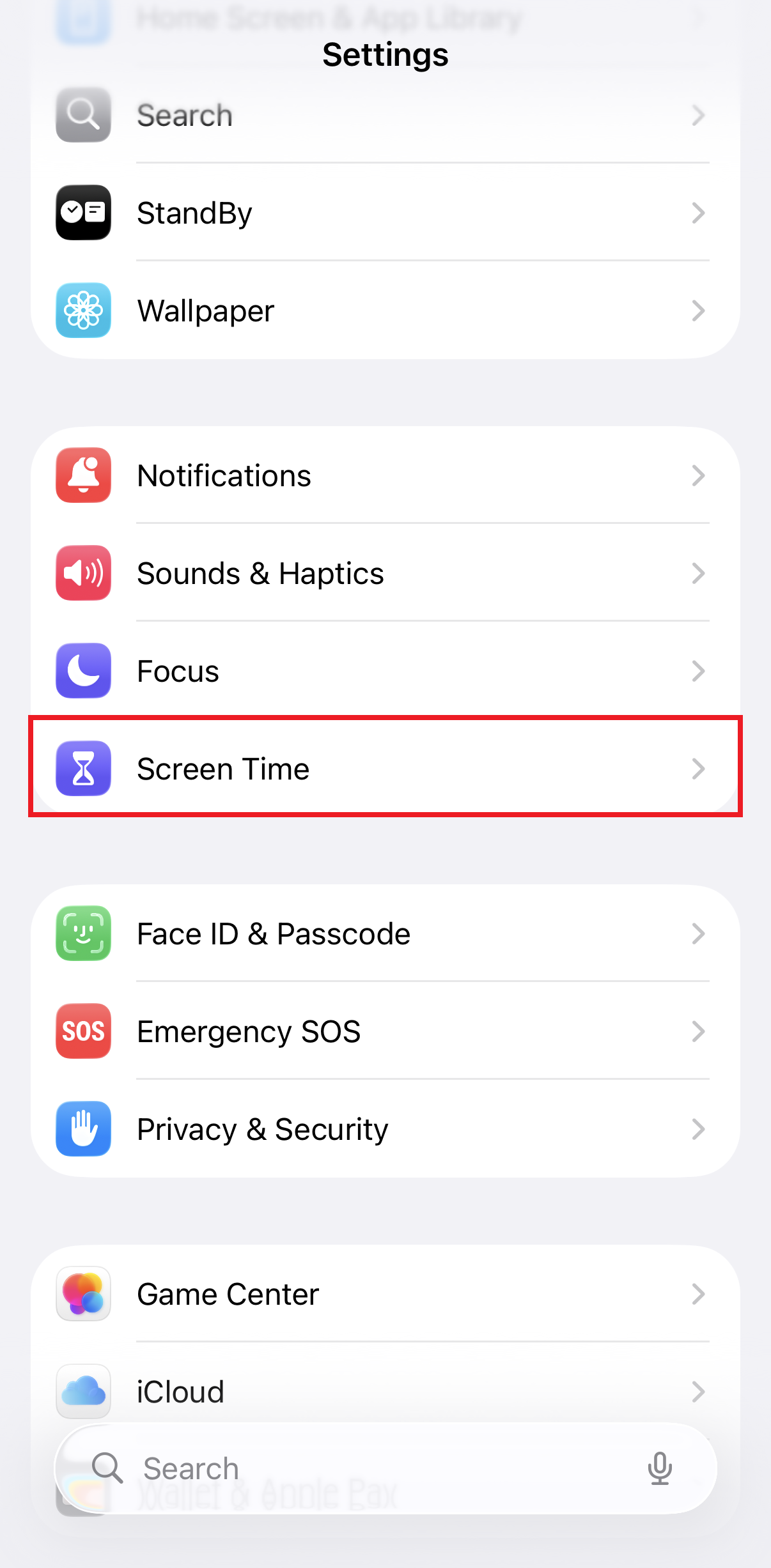
1. Open Settings and tap Screen Time.
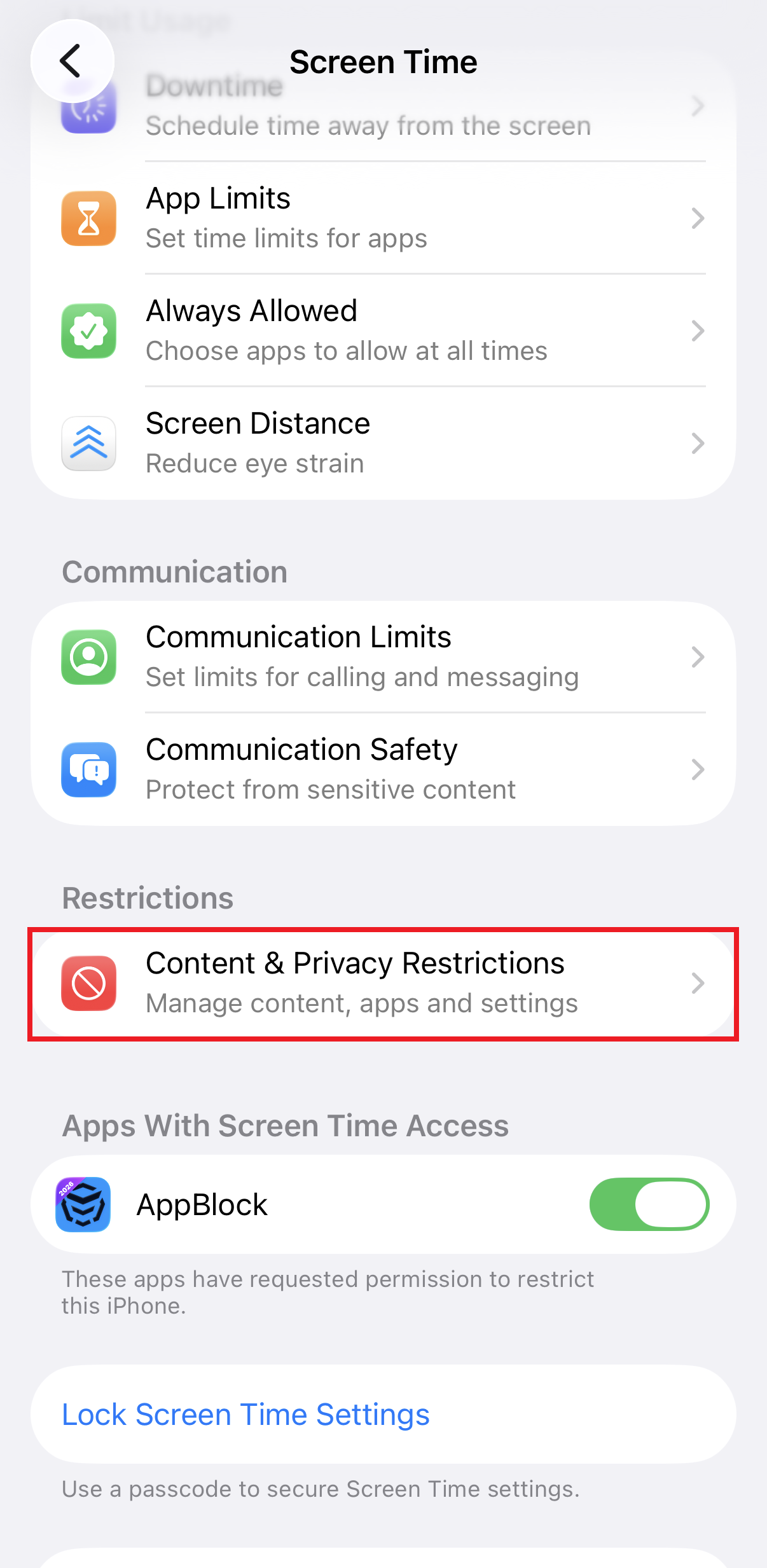
2. Go to Content & Privacy Restrictions and toggle it on.
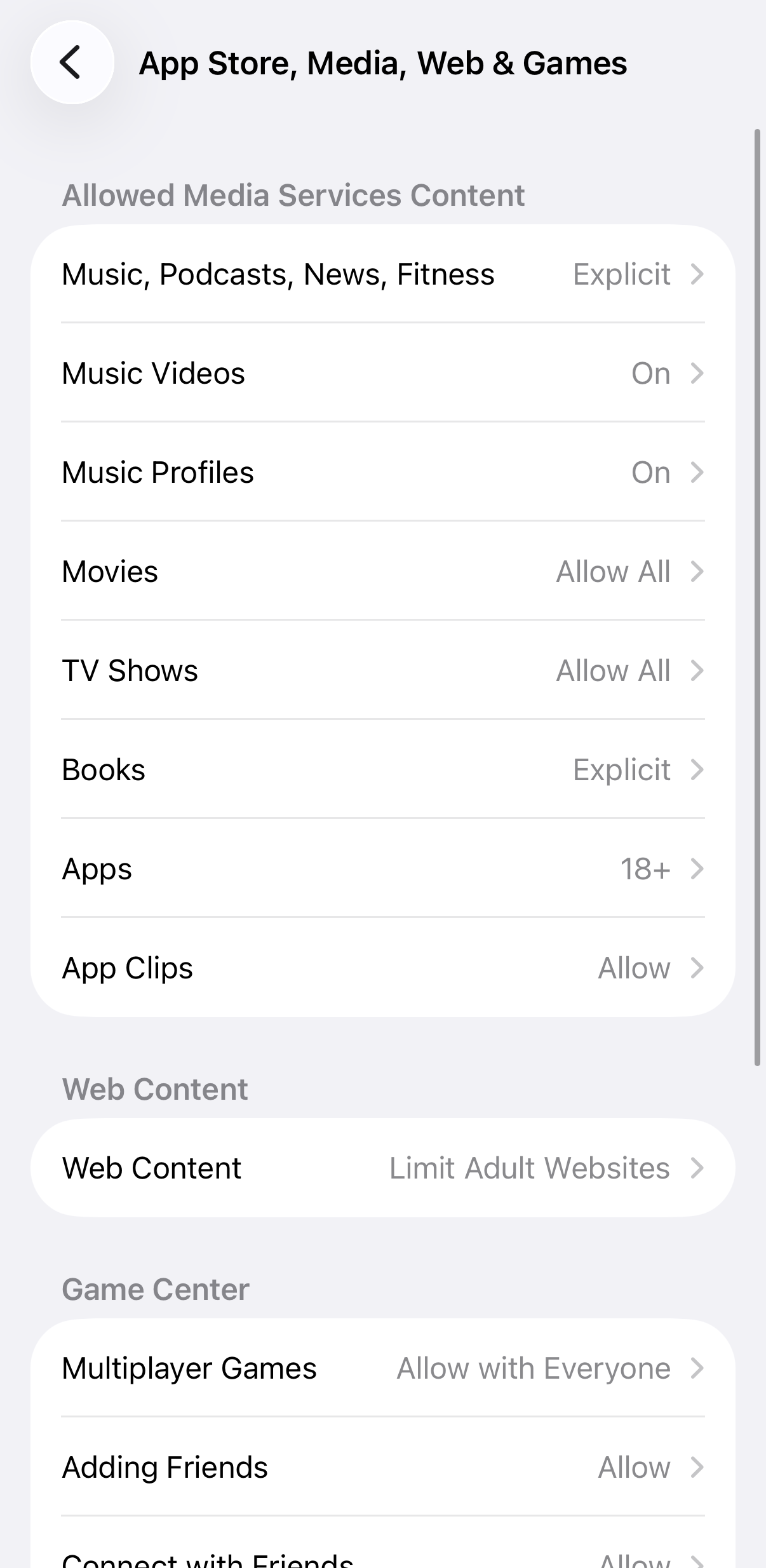
3. Tap Store, Media, Web, & Games (or Content Restrictions in older iOS versions).
4. Tap Web Content. Here you have three choices:
◦ Unrestricted Access: The default.
◦ Limit Adult Websites: Automatically blocks many explicit sites and lets you manually add specific URLs under “Never Allow.”
◦ Allowed Websites Only: The “nuclear option.” This blocks everything except for a small list of sites you specifically approve.
The Reality Check: While this is a great free tool, it’s not foolproof. Determined users (especially tech-savvy kids) often find ways around it by changing time zones or using iMessage tricks to open browsers.
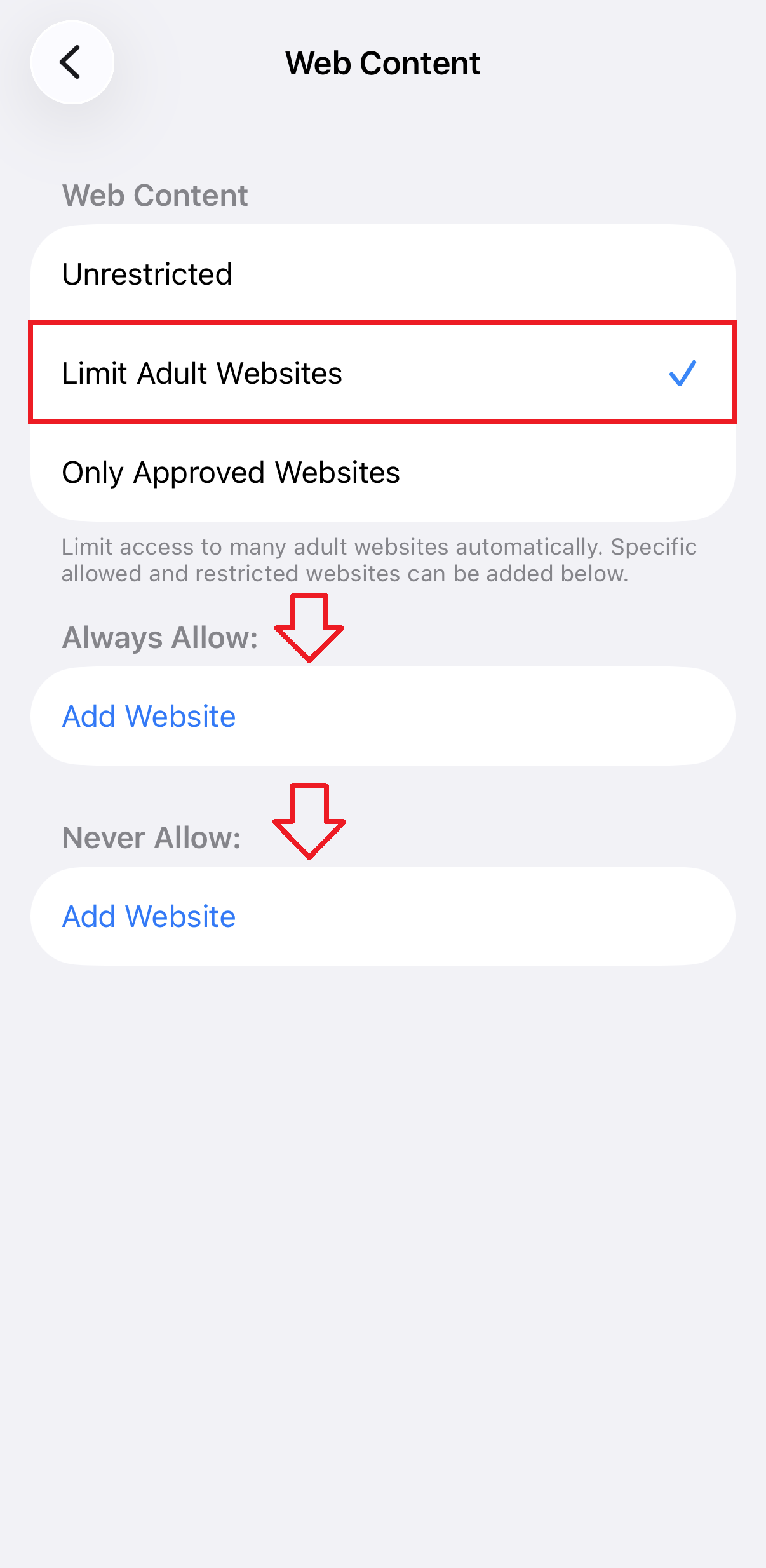
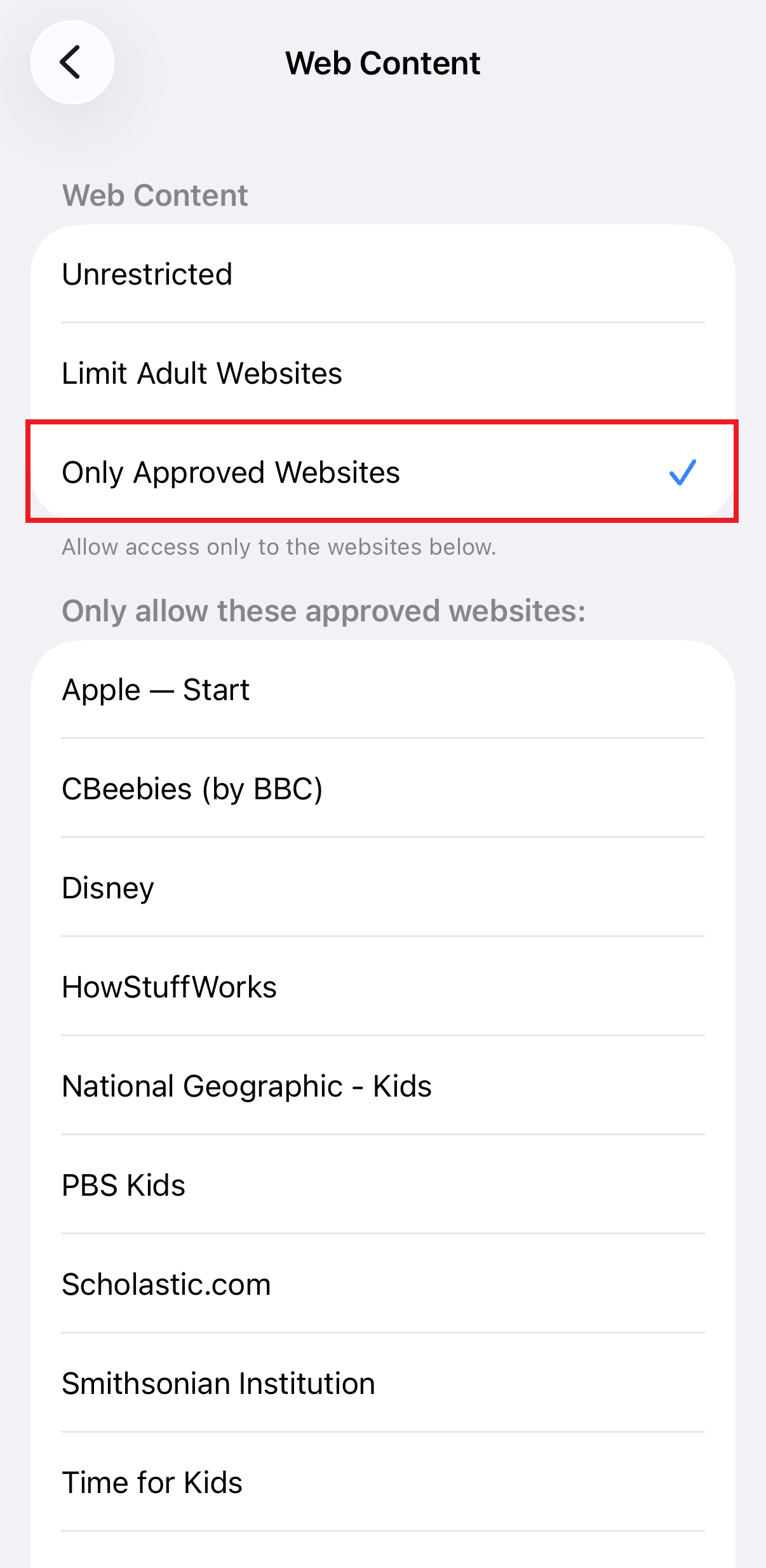
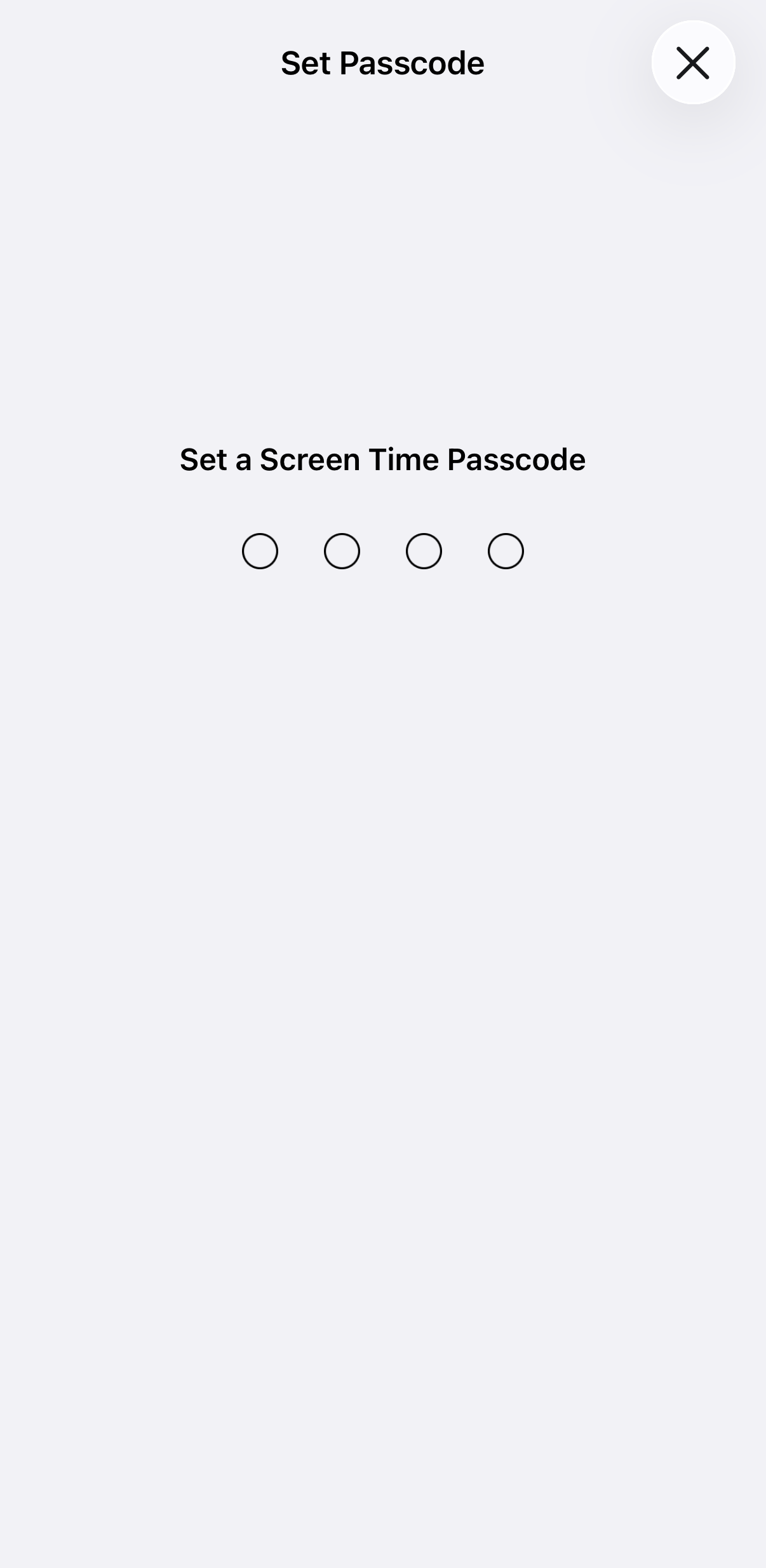
AppBlock is built for moments when willpower runs out. Instead of gently nudging you, AppBlock adds the kind of digital friction your brain actually needs to pause, breathe, and step away from mindless browsing.
AppBlock removes temptation before it turns into a habit, so you don’t have to negotiate with yourself every time. When you set it up properly, your phone stops working against you and starts respecting your boundaries.
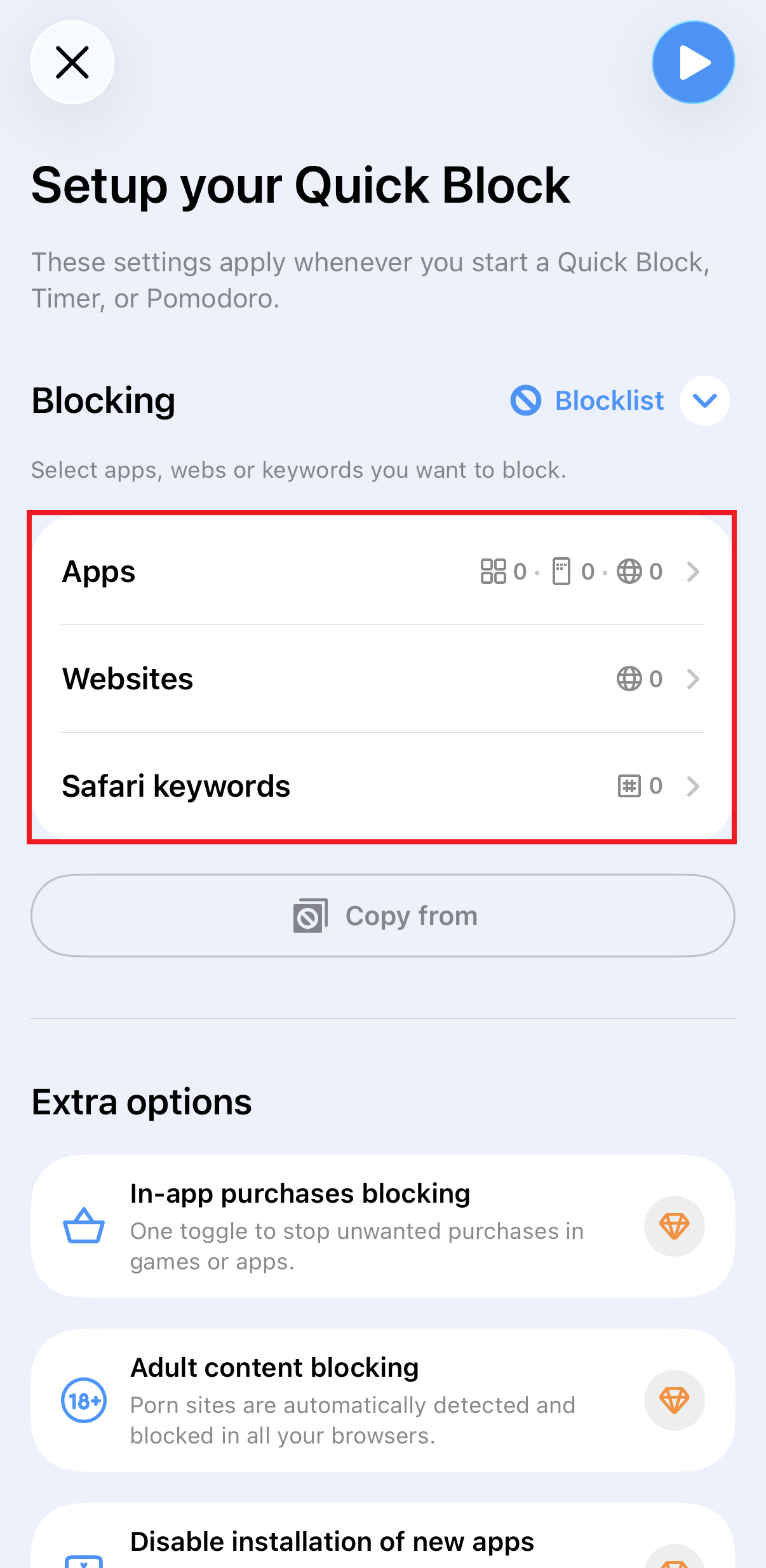
1. Choose your mode: Create a Schedule (for recurring focus time) or use Quick Block for an instant focus session.
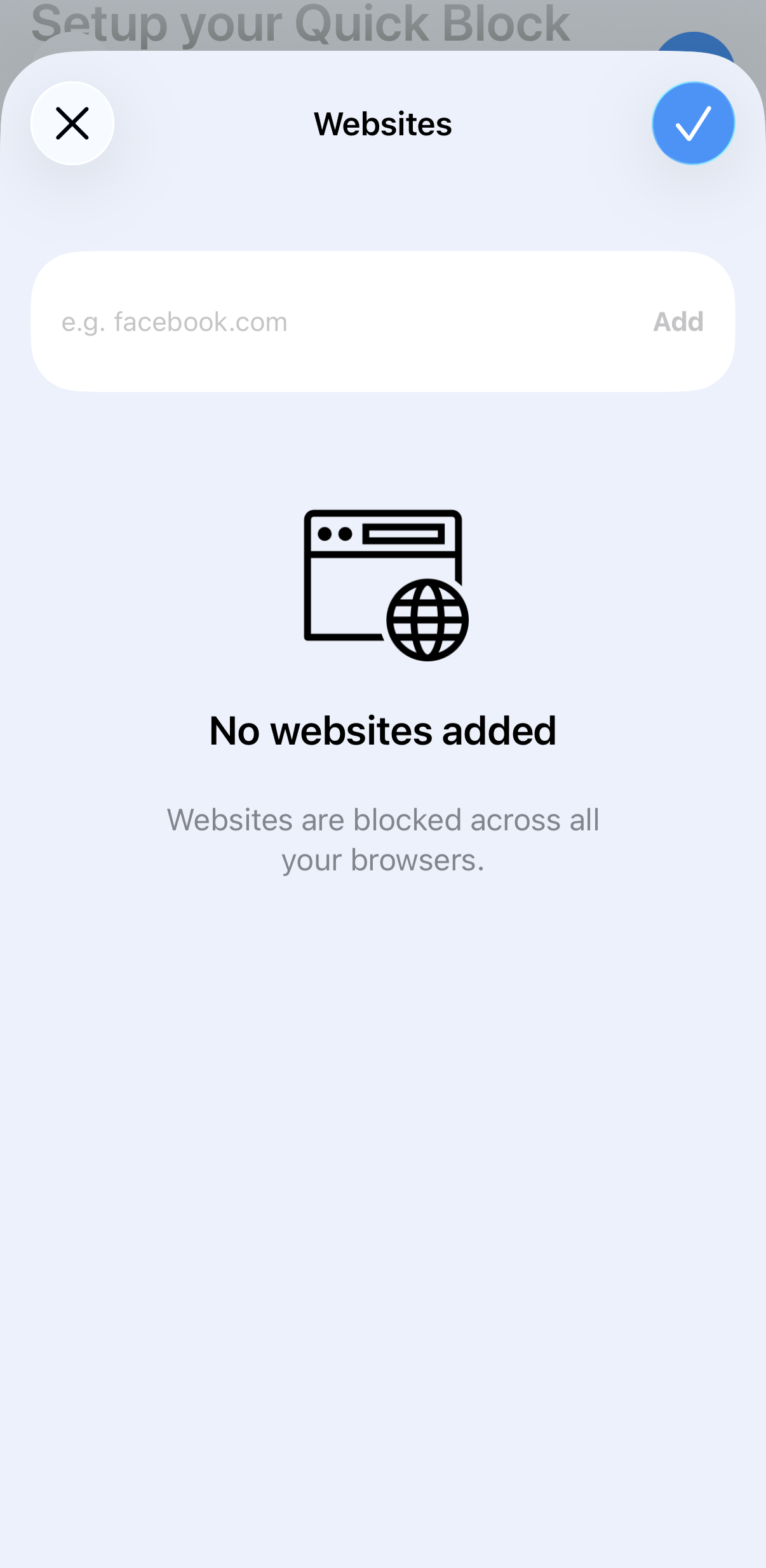
2. Select your targets: When choosing what to block, tap the Webs tab.
3. Add URLs or Keywords: You can enter specific addresses or use Keywords. If you block the keyword “news,” any domain containing that word will be restricted.
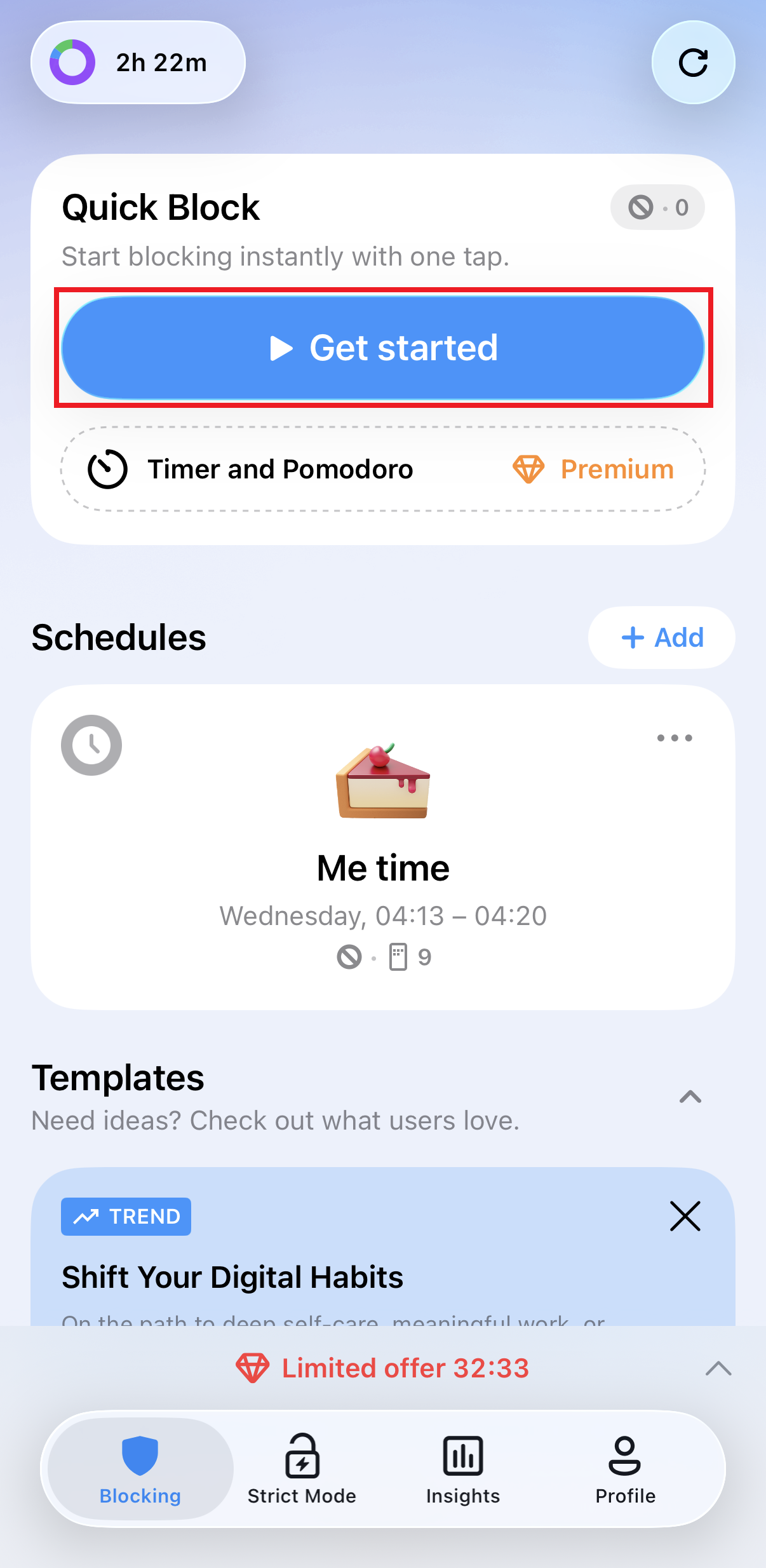
Go strict, it´s the game-changer.
The biggest problem with iOS block websites features is how easy they are to bypass. People often just ignore limit for 15 minutes and then stay on the site for two hours.
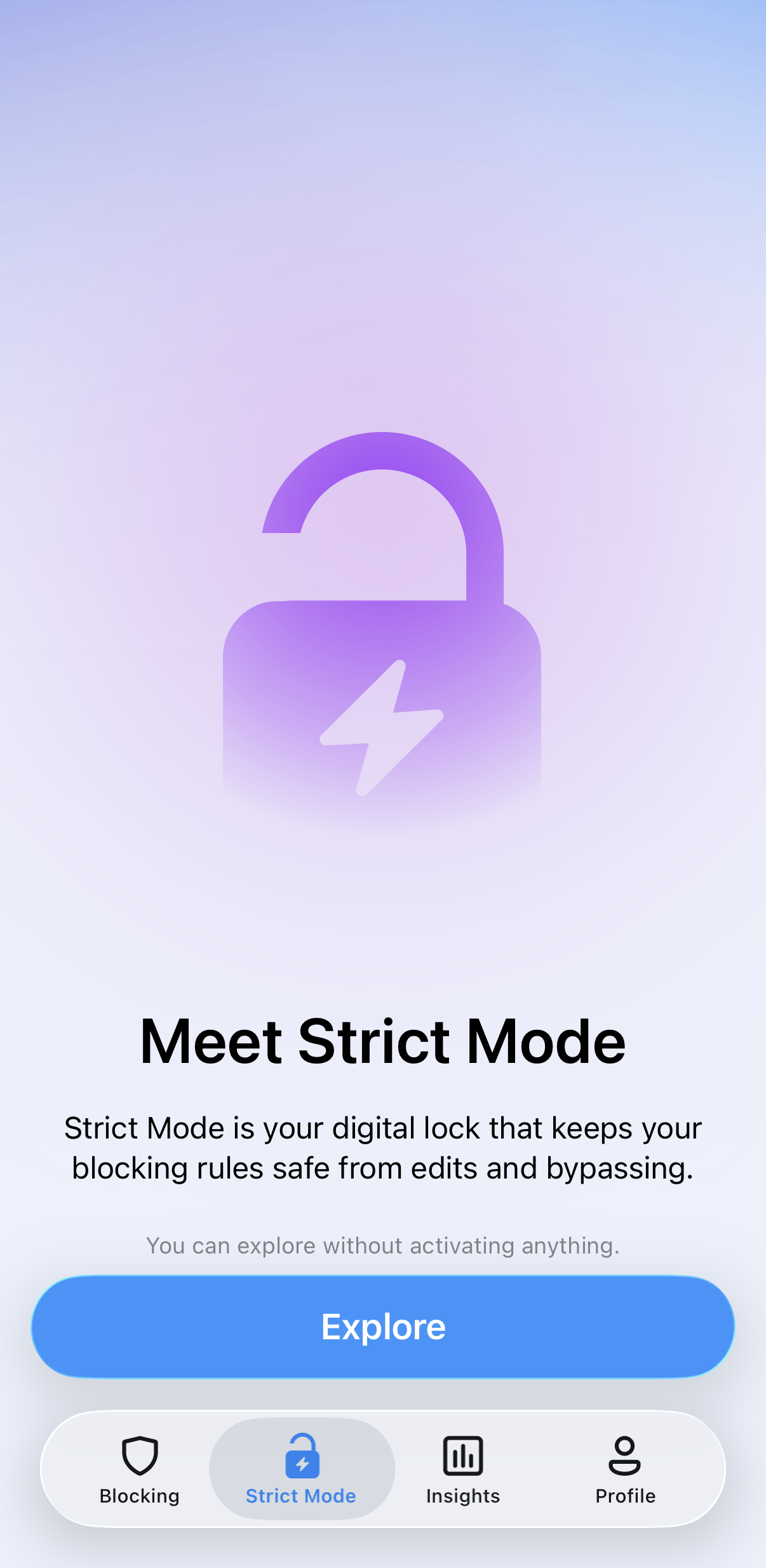
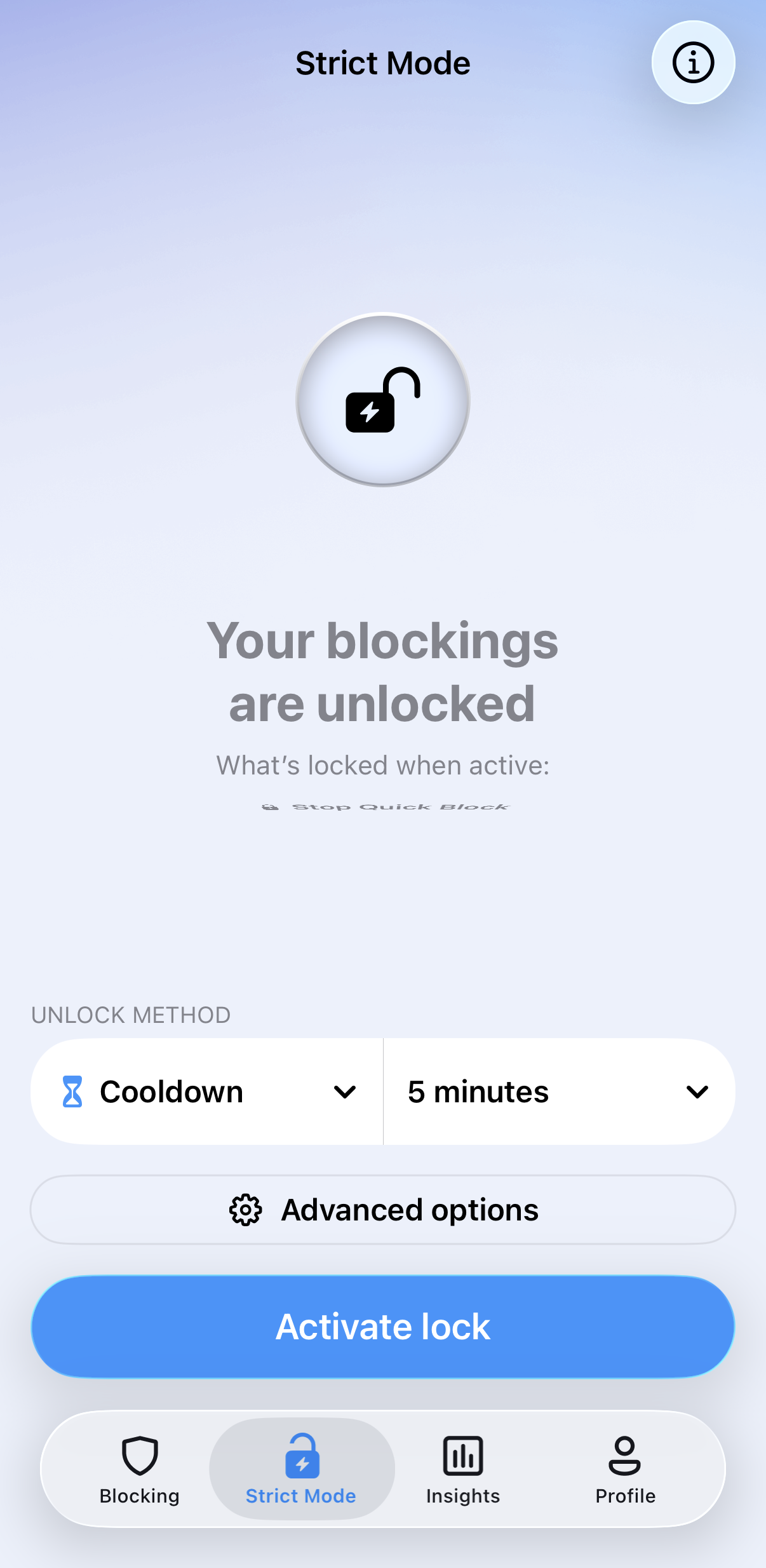
To truly block websites on iPhone, you need a tool that doesn’t take no for an answer. AppBlock’s Strict Mode is designed to be unbreakable. You can set it to follow your schedules, and once it’s on, there’s no “undo” button until the timer runs out. It even uses iOS Shortcuts to prevent you from sneaking into your settings to turn off the permissions.
Willpower is a limited resource, and by 2:00 PM, most of us have used it all up. Don’t rely on it.
95% of Strict mode users save at least 2 hours daily, that’s a lot of life to get back.
Yes. You can use the native Screen Time settings to limit access to adult content or specific URLs. However, for a more permanent and “un-bypassable” solution, a dedicated site blocker iphone app like AppBlock is recommended.
To block sites permanently so you can’t easily undo it, you need an app with a Strict Mode. AppBlock allows you to lock your restrictions with a timer or an Approval system from a friend, making it technically impossible to bypass until the time is up.
Native Screen Time restrictions primarily cover Safari and Google Chrome. Apps like AppBlock work on a system-wide level or use Safari extensions to provide broader coverage across web views.
Apple’s native settings do not support keyword blocking. However, AppBlock allows you to block URLs that contain specific trigger words, giving you much more granular control over what you see.
Yes. AppBlock’s Strict Mode allows you to “Disable App Uninstalling,” ensuring that your focus sessions stay active even if you have a moment of low willpower.
Gain back control over your screen, empower your life with AppBlock.
Try for free
A big part of our lives is now happening online. But sometimes it is great to take a step back and think about the impact of the technologie...

As the school year kicks off, students across the globe are once again faced with the challenge of balancing academic success with the endless distractions…

Ah, Christmas—the most magical time of the year! 🎄 Or at least, that’s the plan, right? In reality, it can often feel like we’re juggling…