• Productivity • Study • Well-being •8 min read


• Productivity • Study • Well-being •8 min read
You can block a specific website on iPad either through built-in Screen Time restrictions or with a dedicated website blocker like AppBlock. While native settings cover basic limits, AppBlock lets you block individual URLs permanently or on a schedule, filter sites by keywords, and enable Strict Mode to lock your rules. This gives you precise control over when and how distractions are blocked.
Your iPad can be your most powerful tool or your biggest source of distraction. One moment you’re opening a page to get something done, and the next you’re deep in tabs you never meant to visit. You’re not the only one this happens to, but that doesn’t mean it has to stay that way.
Focus has become a rare commodity, and without the right conditions, it’s even harder to hold onto. Today, focus isn’t just about willpower. It’s about creating an environment where distractions don’t get the final say. Whether you want calmer workdays, clearer routines, or safer browsing for your family, learning how to block websites on iPad is a small change that can bring back a real sense of control.
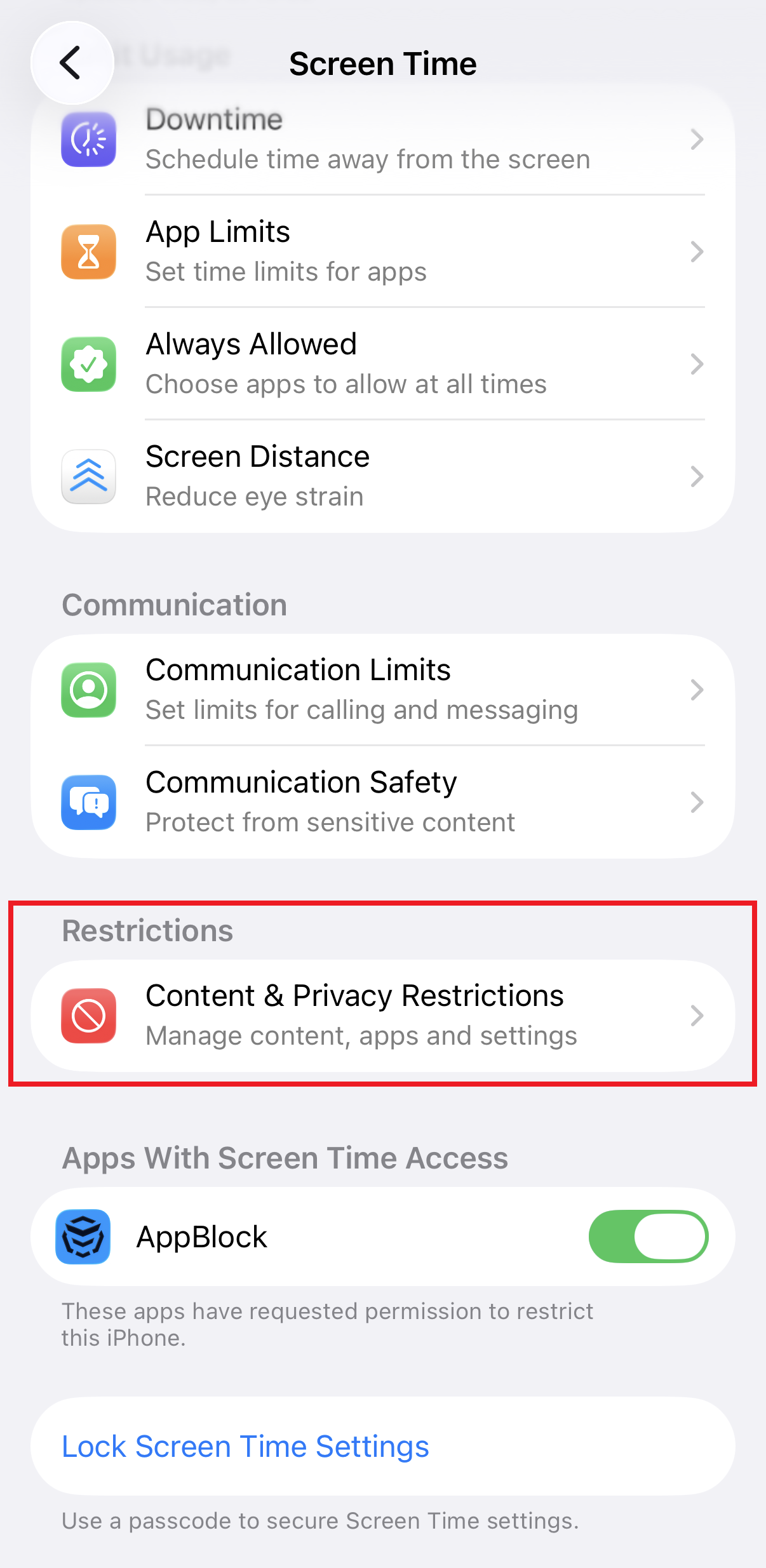
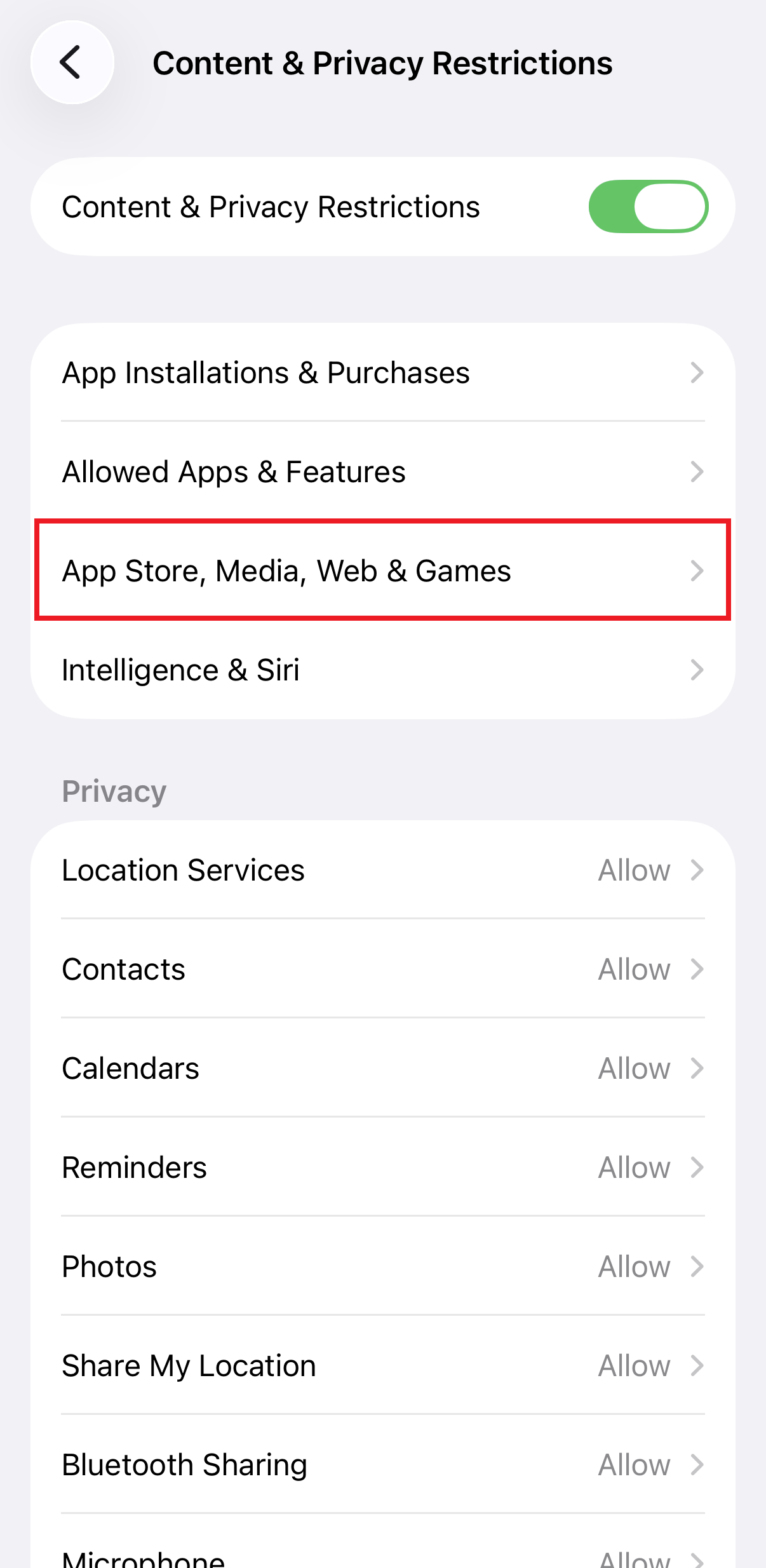
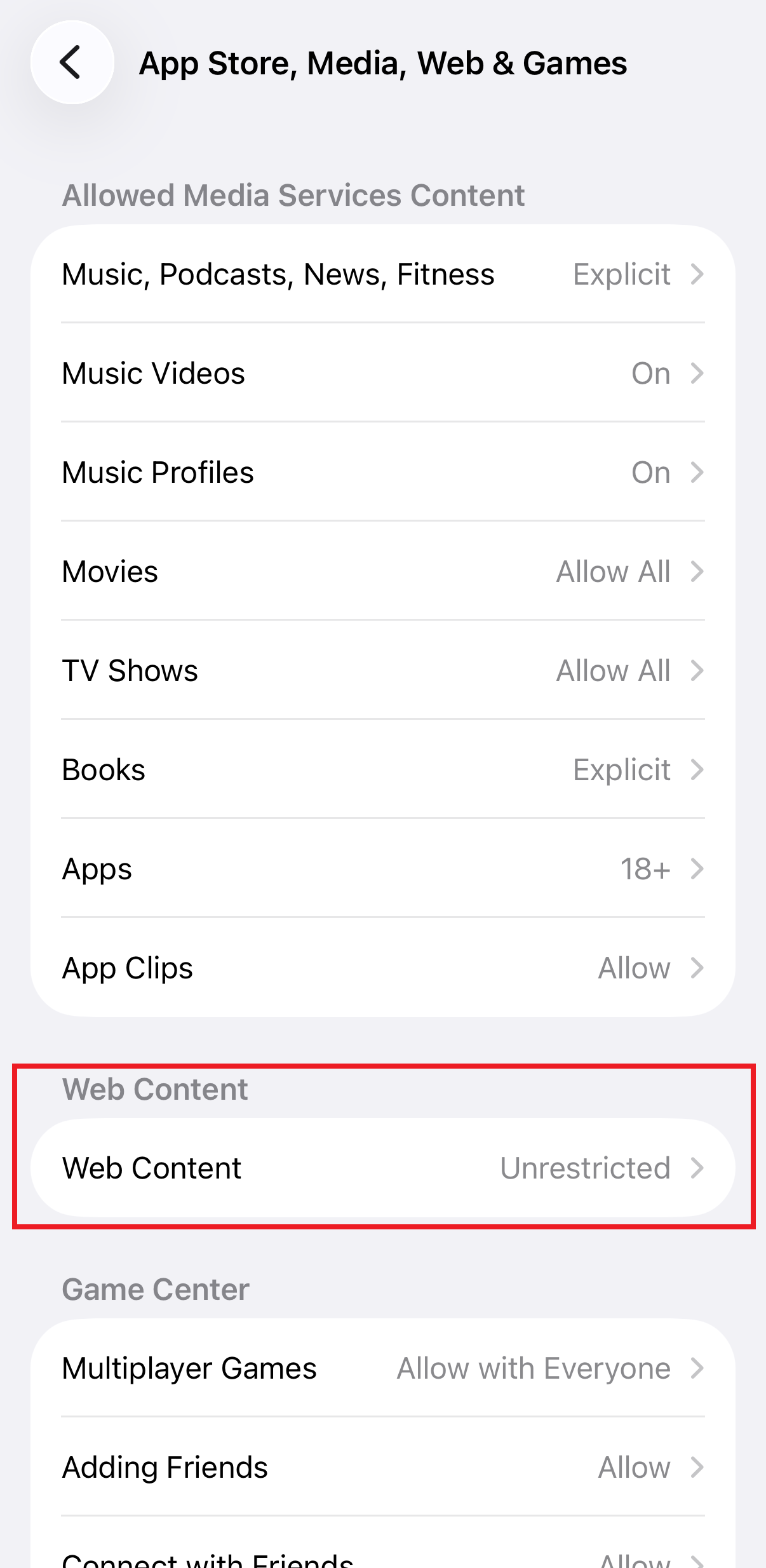
Native iPad restrictions, found in iPadOS Screen Time settings, allow users to filter web content by whitelisting specific URLs or blocking adult websites globally without third-party software. These native settings offer a solid foundation for basic URL-level blocking.
How to set up native website blocking:
While this works for permanent restrictions, it can feel clunky if you only want to block sites during work hours or if you need to block sites based on specific keywords.
If you’re looking for something smarter than basic restrictions – for example, blocking certain websites only during your workweek or launching an instant Deep Focus mode when you need zero distractions – AppBlock steps in as a far more flexible solution.
Rather than repeatedly navigating through iPad settings whenever your schedule changes, AppBlock lets you shape your digital environment once and let it run on autopilot. With automated rules and quick-trigger focus sessions, staying on track becomes less about willpower and more about smart setup.
When certain websites repeatedly pull your attention away, AppBlock lets you block them with precision. Simply create a Schedule or activate Quick Block, open the Webs tab, and add the exact URL.
Once saved, the website blocker instantly restricts access, helping you block specific sites on iPad until your focus session ends.
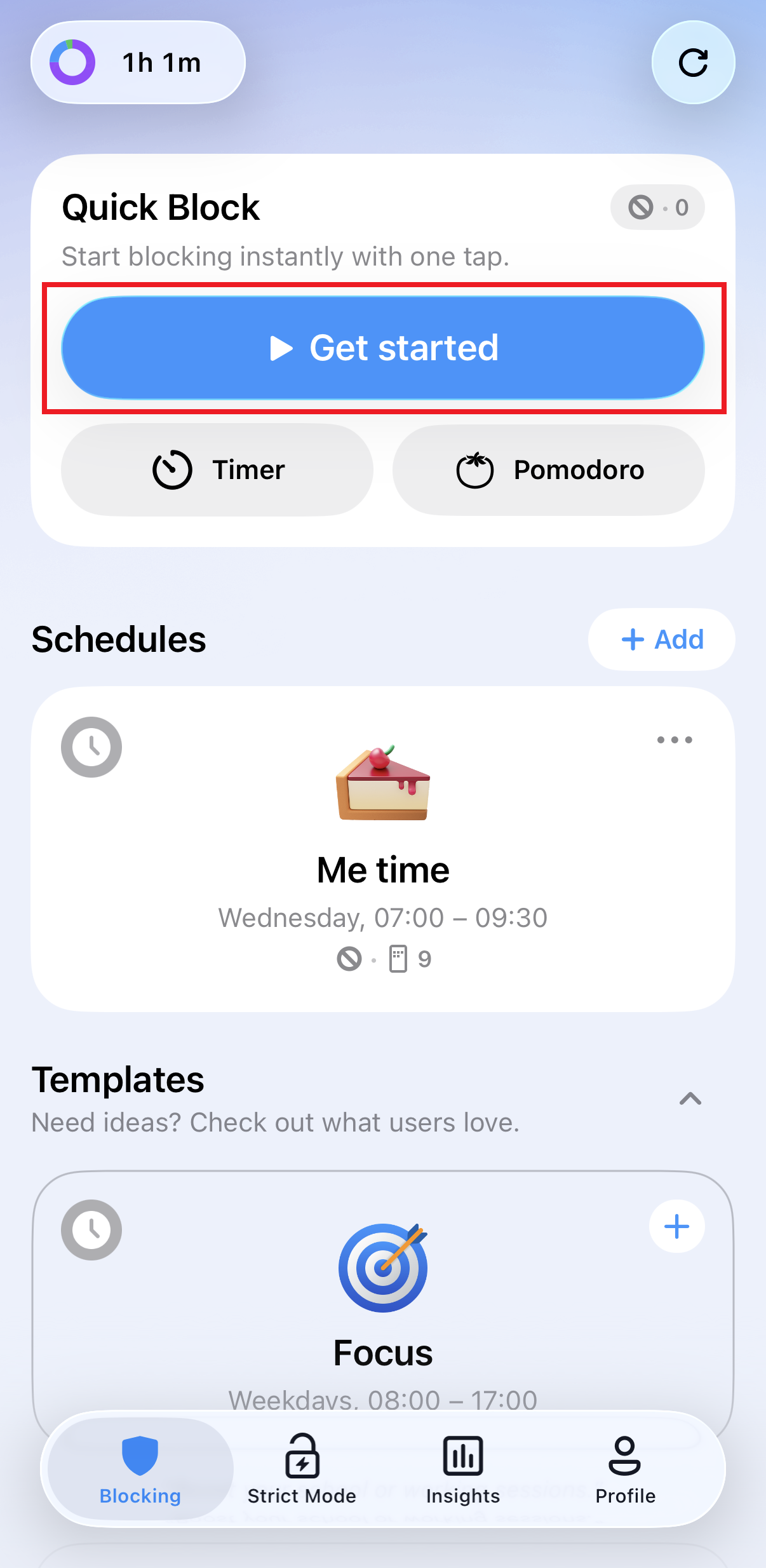
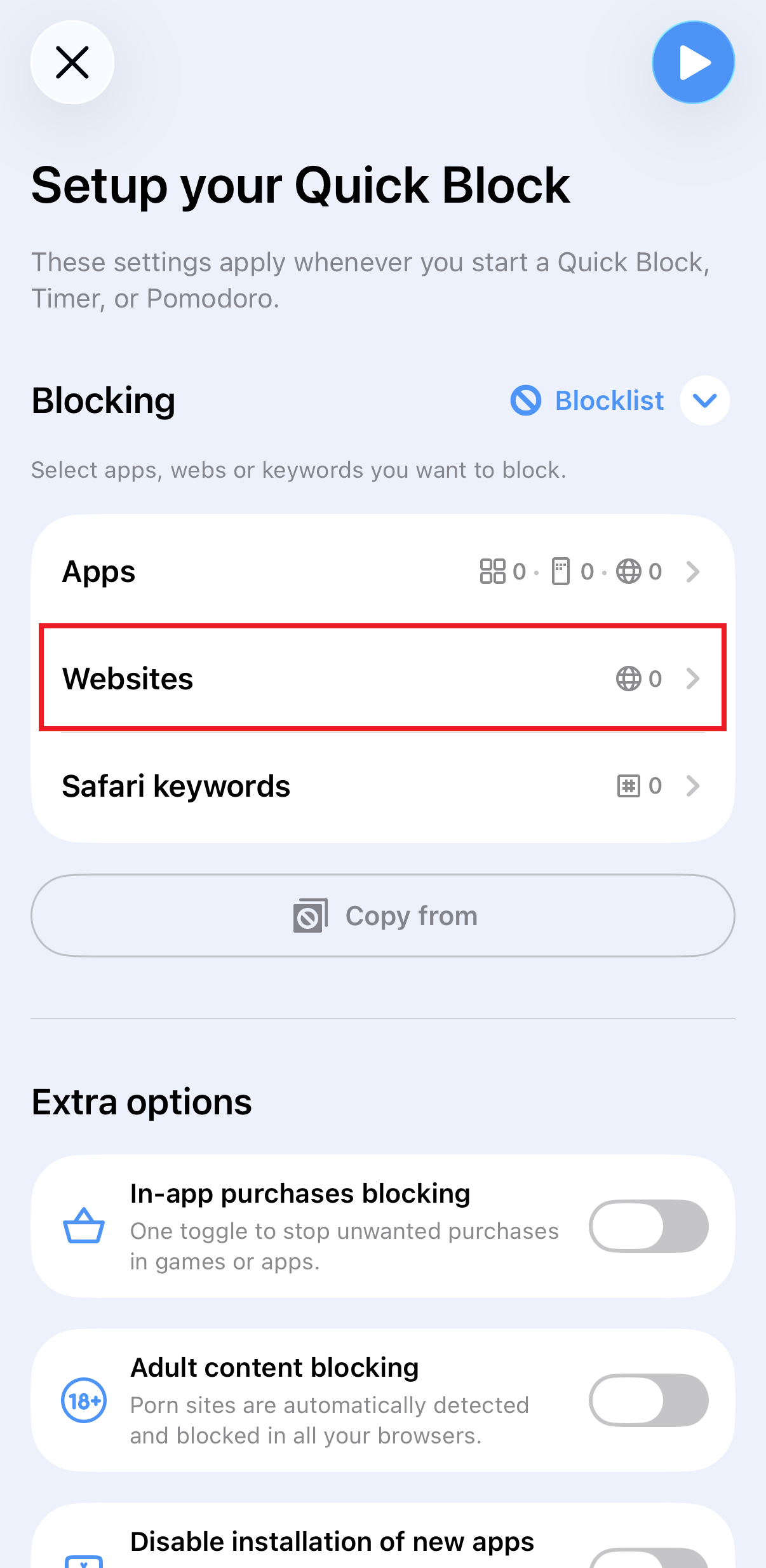
Sometimes, blocking one URL isn’t enough. If you find yourself jumping from one site to another, Keyword Blocking is the mass restriction tool you need:
94% of users who actively use Strict Mode reduced their screen time by 60%.
The real magic happens when you combine these blocks with Schedules. You can set your iPad to automatically block social media and news sites from 9:00 AM to 5:00 PM, Monday through Friday. To ensure you don’t succumb to the temptation of turning the blocker off, AppBlock’s Strict Mode can prevent you from deleting the app or changing settings until the timer expires.
Yes. You can block individual websites using Apple’s Screen Time settings, or use a website blocker for iPad like AppBlock for more advanced control. AppBlock allows you to block exact URLs, schedule restrictions, and prevent access with Strict Mode.
Native iPad settings don’t offer flexible time-based blocking for specific sites. With AppBlock, you can create schedules that automatically block websites during work, study time, or evenings, then lift the restriction when the session ends.
Yes. Apps like AppBlock act as dedicated website blockers for iPad. They let you block specific sites, filter content by keywords, and automate rules so you don’t have to manually change settings every time.
You can manually add sites to Screen Time’s block list, but for broader coverage, AppBlock lets you block entire categories using keyword blocking. This helps prevent switching between similar sites.
Yes. AppBlock includes Strict Mode, which prevents changes to blocking rules or deleting the app until your focus session ends. This is useful if you want stronger accountability.
Screen Time is a built-in tool for basic content restrictions and parental controls. AppBlock is designed for productivity and deeper control, offering scheduling, keyword filtering, quick blocking, and stricter enforcement options.
Apple Inc. (n.d.). Limit access to websites on iPhone. Apple Support. Retrieved February 23, 2026, from https://support.apple.com/en-gw/guide/iphone/iph3ff83f3b1/ios
Gain back control over your screen, empower your life with AppBlock.
Try for free
Quick answer What is the best screen time control app? The best screen time app is the one that removes decision fatigue…
Spring is in the air, and with it comes a renewed sense of energy and motivation. It's the perfect time to set our sights on new goals and a...

Communities play a powerful role in shaping our lives and fostering personal development. By understanding the power of community, we can harness its potential…