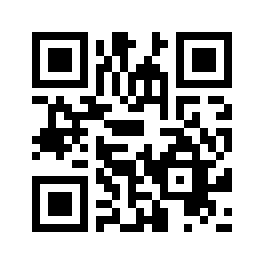
AppBlock on iOS

Looking for answers related to AppBlock’s functionalities? Explore frequently asked questions and discover helpful answers.

Blocking conditions

If your schedules aren’t starting when they should, first check your schedule settings and the times of the blockings to ensure everything is set correctly. If everything looks good, try refreshing your blocking settings within the AppBlock app. Here’s how:

For AppBlock version 3.7.0 and older:

  1. Open AppBlock: Launch the AppBlock app on your device.
  2. Navigate to the Blocking Tab: Tap on the “Blocking” tab within the app interface.
  3. Pull to Refresh: Swipe down on the screen to initiate the refresh process.
  4. Notification: Once completed, a notification stating “Blocking refreshed” will appear at the bottom of your screen.

For AppBlock version 3.8.0 and newer:

  1. Open AppBlock: Launch the AppBlock app on your device.
  2. Navigate to the Blocking Tab: Tap on the “Blocking” tab within the app interface.
  3. Tap the Refresh Icon: Tap the icon in the top right corner to refresh the blockings.

If refreshing the blockings doesn’t resolve the issue, please contact our support team for further assistance.

Was this article helpful?

We understand how confusing and frustrating it can be when AppBlock says your usage limits are reached, even though you haven’t used the app much, or at all. We’ll try to explain what’s happening and what you can do.

🔄 First, try refreshing your blocking settings

Sometimes, usage limits might be off by a few seconds due to how quickly (or slowly) the system reports app usage. Before jumping to other conclusions, try refreshing your blockings manually in AppBlock. It might solve the problem right away.

For AppBlock version 3.8.0 and newer:

  1. Open AppBlock: Launch the AppBlock app on your device
  2. Go to the Blocking tab: Tap on the “Blocking” tab within the app
  3. Tap the refresh icon in the top-right corner

For AppBlock version 3.7.0 and older:

  1. Open AppBlock
  2. Go to the Blocking tab: Tap on the “Blocking” tab within the app
  3. Pull to refresh: Swipe down on the screen to refresh process (you’ll see a message “Blocking refreshed”)

⚠️ Still not working? It might be a system issue on iOS 26 / iOS 18

Starting with iOS 26, and also on iOS 18 (due to shared developer tools), we’ve observed a bug in the system’s reporting of app usage. The system may say the limit has been reached even if you haven’t actually used the app much, or at all.

AppBlock doesn’t have access to your actual screen time due to Apple’s privacy restrictions. Instead, we rely on the system to tell us when an app was used, and unfortunately, that data may currently be inaccurate.

đź›  What you can try:

Our developers tried their best to change whatever is possible from our side and have implemented several updates in version 4.6.6 to improve how usage limits work. Please make sure your app is updated to this version (or later).

If you’re still experiencing issues after updating:

  • Try using only one usage limit at a time, especially if you have multiple overlapping ones
  • Consider switching to the “Open Limit” feature, which doesn’t rely on usage time and may be more stable

We’re actively monitoring the situation and exploring possible workarounds. But ultimately, a permanent fix will need to come from Apple in a future iOS update.

đź’¬ Still have questions?

If this issue affects you and you’d like us to take a closer look or offer help specific to your case, don’t hesitate to contact our support team. We’re here to help!

Was this article helpful?

If location schedules are not working, please try the following steps:

  1. Check Location Permissions: Ensure that location permissions are granted for AppBlock.
  2. Toggle Location Services: Try turning location services off and on again in your device settings.
  3. Recreate the Location Schedule: Delete the existing location schedule and create a new one.
  4. Extend the Radius: Increase the radius for the location schedule to improve accuracy.
  5. Refresh the Blocking: Refresh the blocking settings as mentioned in the article to ensure everything is up to date.

If none of these steps resolve the issue, please send us a short video (max 20MB) of your blocking settings to our support team, so we can take a closer look and assist you further.

Was this article helpful?

Blocking websites with usage limits is technically possible only in the Safari browser. You can do this in a similar way to blocking apps:

  1. Go to Schedules > Blocklist > Save.
  2. Select Usage limits and set the daily usage limit for the chosen websites.
  3. Under Apps and Safari websites, open the Other category to see a list of recently viewed websites in Safari.

If the website you want to block isn’t listed, visit the site in Safari, then return to AppBlock. The website should now appear in the Other category.

Please note that usage limits will only apply when you access these websites via the Safari browser, as iOS cannot track website usage in other browsers.

Was this article helpful?

You can easily set up app blocking based on your location, whether it’s at a specific place or when you’re outside a designated area (Inverse radius). To do this, create a new schedule with the apps you want to block and select “Location” as the blocking condition.

Make sure that location access is set to “Always” for the feature to function correctly. Next, choose the radius where the schedule will be active, then proceed to set the schedule’s time. Once you’re done, tap “Create” in the top right corner to save your schedule.

Was this article helpful?

Yes, you can combine blocking conditions to customize how and when apps are blocked. Currently, we offer four types of blocking conditions, with two of them allowing for preset combinations:

  1. Time
    • You can block apps based on a set time duration. Additionally, you can combine this with a location condition to block apps during specific times in a chosen area.
  2. Location
    • The location condition lets you block apps in a specific area (or when outside it) and on selected days and times. When combined with the time condition, both conditions must be met for the apps to be blocked.
  3. Usage Limit
    • You can select specific days and set a total time limit for how long you can access certain apps. However, due to system limitations on iOS devices, it’s currently not possible to set usage limits by specific hours.
  4. Open Limit
    • Open Limit allows you to set a daily limit on how many times selected apps can be opened and how long they can be used while accessible. Open limit cannot be combined with any of the conditions above.

This flexibility allows you to tailor your app-blocking schedule to fit your needs, whether based on time, location, or usage.

Was this article helpful?
We use cookies!
We use cookies for the best website functionality, which we process according to our privacy policy. More information about cookies can be found here.